Passwords: keeping the keys to your online life safe
Strong passwords don't have to be hard to remember. Three random words, a password manager and 2-step verification will keep your accounts safe.
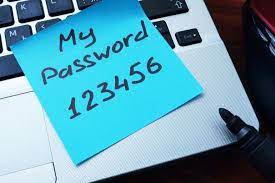
Passwords are like the keys to your house. You wouldn't use the same key for your front door, your car and your shed – and you wouldn't leave your keys lying in the street for anyone to pick up. Passwords deserve the same care.
A few questions to ask yourself
- Do you use the same password for more than one account?
- Could someone guess your password from things you've shared – a pet's name, a grandchild, a birthday, your football team?
- Do you know roughly how many online accounts you have?
If any of those make you wince, you're in very good company – and this article will help.
Why using the same password is risky
Companies get hacked. It's called a data breach, and when it happens, lists of email addresses and passwords can end up in criminals' hands. They use computer programs to try those same details on thousands of other websites – your email, Amazon, your bank – within minutes. If you've used the same password, they're in.
That's why the most important rule is a different password for every important account – starting with your email.
Three random words
The National Cyber Security Centre (the government's cyber security experts) recommends making a password from three random words, for example:
TeapotRiverBicycle
Three words make a password long enough to be very hard for a computer to crack, but much easier for a person to remember than something like X7#qL!9z.
- Choose words that mean something to you but that nobody could guess.
- Avoid family names, pets, birthdays, and anything you've posted on social media.
- If a website insists on a number or symbol, add one: Teapot7River!Bicycle
(Please don't use our examples – make up your own!)
Let a password manager do the remembering
A password manager is like a locked notebook for your passwords, kept safely on your phone, tablet or computer. It can create a strong password for each website, remember it, and fill it in for you. You only need to remember one password – the one that unlocks the password manager – so make that one strong.
You may already be using one without realising. When your phone or web browser offers to "save password", that's a password manager.
- iPhone, iPad and Mac: the Passwords app
- Android phones and the Chrome browser: Google Password Manager
- Microsoft Edge browser: built in
If you use a mix of devices – say an iPhone and a Windows laptop – a password manager that works on everything, such as Bitwarden (free) or 1Password, may suit you better.
Is it OK to write passwords down?
Yes – as long as you keep them somewhere safe at home, away from your devices. A notebook in a drawer is far safer than using one password everywhere. It also helps your family if they ever need to manage things for you.
Add a second lock: 2-step verification
2-step verification means that as well as your password, you need a code sent to your phone (or a tap on your phone) when you log in from a new device. Even if someone steals your password, they can't get in without your phone. Turn it on for your email, banking, shopping and social media accounts.
Passkeys – the future of logging in
More and more websites, including Google, Microsoft, Amazon and PayPal, now let you sign in with a passkey instead of a password. You confirm it's you using your phone's fingerprint, face recognition or PIN. Passkeys can't be guessed, can't be stolen in a data breach and can't be handed over to a scammer. If a website offers you one, it's a good idea to say yes.
Where to start
Don't try to change everything at once.
- Today: change your email password and turn on 2-step verification.
- Next week: your online banking and shopping accounts.
- After that: social media and everything else, a few at a time.
Need a hand?
If this all feels a bit daunting, come and see us and we'll go through it with you. Our friendly volunteers can help at our free sessions:
- Mondays 10am–12noon – St Wilfrid's Church Hall, Burgess Hill
- Thursdays 10am–12noon – Spire Café, St John's Church, Burgess Hill
- Haywards Heath – Bentswood @ No.34, America Lane (by appointment)
Call 07349 916841 or email spire.computer.help@gmail.com. No question is too small.
The Spire Computer Help Team
More hints and tips on this topic
Explanations of the words you might meet, in our glossary: Passwords & Account Security.