
Keeping Windows up to date
Is your Windows laptop slow when you switch it on? Unfinished updates are often the reason. Here's how to let Windows catch up – plus what Windows 10 users need to know.
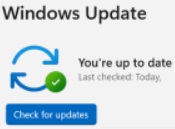
Is your Windows laptop or desktop very slow when you first switch it on? Updates that haven't been able to finish are often the reason.
Why updates matter
Microsoft regularly sends out updates for Windows. Some add new features, but most fix security weaknesses that criminals could use to get into your computer. Keeping your computer up to date is one of the most important things you can do to stay safe online.
Why updates can slow your computer down
Windows downloads and installs updates in the background. If your computer is only switched on for short spells, or goes to sleep part-way through, the updates never get the chance to finish. So every time you switch on, Windows picks up where it left off – and everything feels slow. Big updates can take an hour or more, especially on older computers.
Give it a good session once a month
Once a month, give your computer time to catch up. You could leave it plugged in and switched on overnight, or follow these steps during the day:
- Plug it into the mains and switch it on.
- Stop it going to sleep. Type sleep into the search box on the taskbar at the bottom of the screen and open the power and sleep settings. Set the "when plugged in" sleep option to Never. (You can change it back afterwards.)
- Check for updates. Type update into the search box and open Check for updates (or go to Settings > Windows Update). Choose Check for updates.
- Restart if asked. If you see Restart now, save anything you're working on and restart.
- Check again. Some updates only appear once earlier ones are finished, so keep checking until you see You're up to date.
If you haven't done this for a while, the first time may take several rounds and a few restarts. Be patient – it gets quicker.
Handy tip: In Windows Update, go to Advanced options > Active hours and tell Windows when you normally use your computer. It will then avoid restarting while you're busy.
Still using Windows 10?
Microsoft stopped supporting Windows 10 in October 2025. Home users can still get security updates through the Extended Security Updates scheme, which Microsoft has now extended until 12 October 2027. You can join free of charge by signing in with a Microsoft account and turning on Windows Backup. Look for the option to enrol in Settings > Update & Security > Windows Update.
After that date your computer will stop getting security fixes, so it's worth planning ahead. Can your computer move to Windows 11, or is it time for a new one? We're happy to help you decide.
Phones and tablets need updates too
The same goes for your smartphone and tablet. When your device asks to install an update, say yes – ideally overnight while it's charging and connected to your home Wi-Fi.
Need a hand?
Bring your laptop and its charger and we'll check your updates with you. Our friendly volunteers can help at our free sessions:
- Mondays 10am–12noon – St Wilfrid's Church Hall, Burgess Hill
- Thursdays 10am–12noon – Spire Café, St John's Church, Burgess Hill
- Haywards Heath – Bentswood @ No.34, America Lane (by appointment)
Call 07349 916841 or email spire.computer.help@gmail.com. No question is too small.
The Spire Computer Help Team
More hints and tips on this topic
Explanations of the words you might meet, in our glossary: Windows, PCs & Upgrades.