
QR codes: what they are and how to use them safely
Those black-and-white squares are everywhere – on menus, letters and car park signs. Here's how to scan a QR code with your phone's camera, and how to spot a fake one.
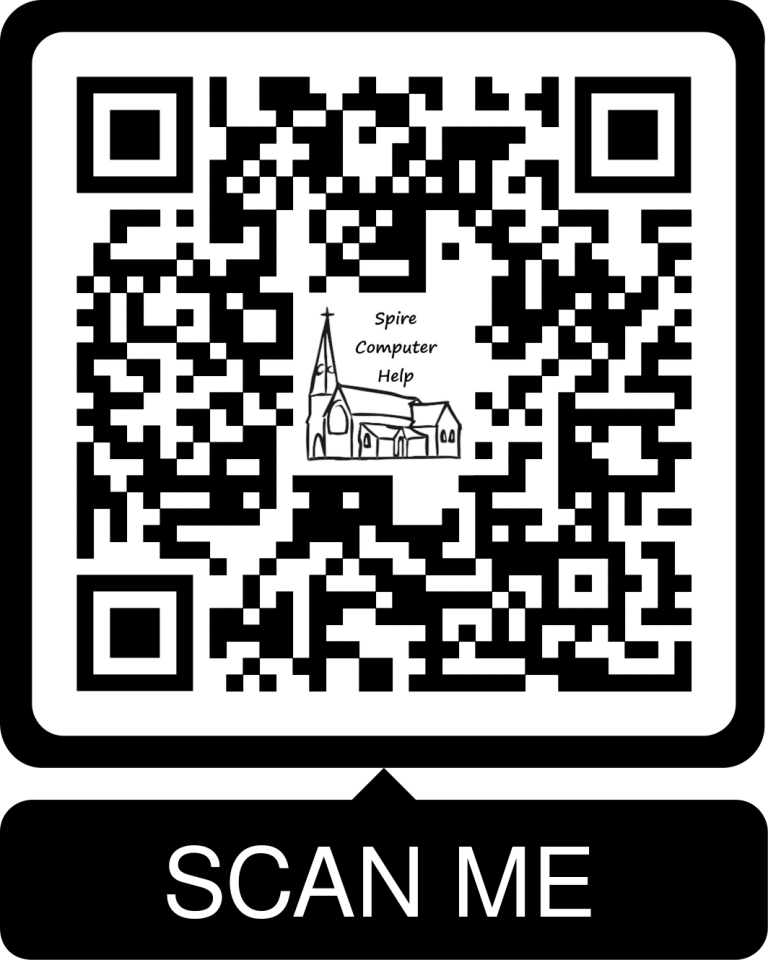
You'll see QR codes almost everywhere now – on restaurant tables, posters, letters from the NHS or the council, parcels and car park signs. They're the small squares made up of black-and-white dots.
What is a QR code?
QR stands for "Quick Response". A QR code is like a barcode, but it holds much more information and your phone can read it from any angle. Most QR codes take you to a web page, saving you from typing a long web address. Others can:
- connect you to a Wi-Fi network
- add someone's contact details to your phone
- start a text message or email
- take you to an app in the app store
- take you to a payment page
How to scan a QR code
Almost all smartphones and tablets can read QR codes using the built-in camera – you don't need a separate app.
- Open your Camera app.
- Point it at the QR code so the whole square is on the screen. Hold steady – there's no need to take a photo.
- A link or message will pop up on the screen. Before you tap it, read the web address it shows.
On some Android phones you may need to tap a small QR or "Lens" button in the camera, or use the Google Lens app.
Handy trick: sharing your Wi-Fi
When visitors ask for your Wi-Fi password, you can show them a QR code instead of reading out a long password from the back of the router.
- Android: go to Settings > Wi-Fi, tap your network and choose Share.
- iPhone: open the Passwords app, tap Wi-Fi, choose your network and tap Show Network QR Code.
Your visitor scans the code with their camera and they're connected.
Are QR codes safe?
A QR code can't harm your phone by itself. The risk is where it sends you.
Criminals have been sticking fake QR codes over genuine ones – on parking machines, electric car chargers and posters – which lead to convincing fake payment pages. They also send QR codes in emails, texts and letters. This is sometimes called "quishing" (QR phishing).
Staying safe
- Check the web address that pops up before you open it. Does it match the organisation? Look out for odd spellings.
- Look for stickers. If a QR code looks as though it has been stuck over another one, don't use it.
- Take care with payments. For parking, use the official app from your app store or pay at the machine, rather than scanning a code on a sign.
- Never download an app from a QR code. Go to the App Store or Google Play and search for it yourself.
- Be wary of QR codes in unexpected emails, texts or letters – especially if they say you need to pay something, confirm your details, or avoid your account being suspended.
If something doesn't feel right, don't scan it. Type the organisation's web address in yourself instead.
Need a hand?
Our friendly volunteers can help at our free sessions:
- Mondays 10am–12noon – St Wilfrid's Church Hall, Burgess Hill
- Thursdays 10am–12noon – Spire Café, St John's Church, Burgess Hill
- Haywards Heath – Bentswood @ No.34, America Lane (by appointment)
Call 07349 916841 or email spire.computer.help@gmail.com. No question is too small.
The Spire Computer Help Team
More hints and tips on this topic
Explanations of the words you might meet, in our glossary: Phones & Tablets, Scams & Online Safety.